You type google.com into your browser, hit Enter, and the website appears on your screen.
This looks simple, right?
But behind that one single keypress, a lot is happening in the background.
Your browser finds the server, establishes a connection, requests the page, receives the data, and renders everything you see.
And all of this happens in milliseconds.
Most developers use the web every day without really knowing what happens between pressing Enter and seeing a website load.
But understanding this process can help you debug network issues, build better-performing applications, and understand why things sometimes go wrong.
So let’s walk through it, step by step.
1. You Press Enter (The Browser Parses the URL)
The moment you hit Enter, your browser starts analysing the URL.
For example, take this URL: https://google.com
The browser breaks it into three parts:
- Protocol: “https” tells the browser to use a secure, encrypted connection.
- Domain: “google.com” is the human-readable name of the server.
- Path: “/” points to the homepage (it could also be something like “/search” or “/about”).
At this point, the browser knows what you want.
But there’s a problem. Computers don’t communicate using domain names like google.com. They communicate using IP addresses, numerical identifiers such as 142.250.195.46.
So before your browser can connect to Google’s servers, it first needs to find the IP address associated with google.com.
That’s where DNS comes in.
2. DNS Lookup (Finding the Server’s Address)
DNS stands for Domain Name System.
You can think of DNS as the internet’s contact list. You give it a domain name like “google.com”, and it gives you back an IP address that computers can use to communicate.
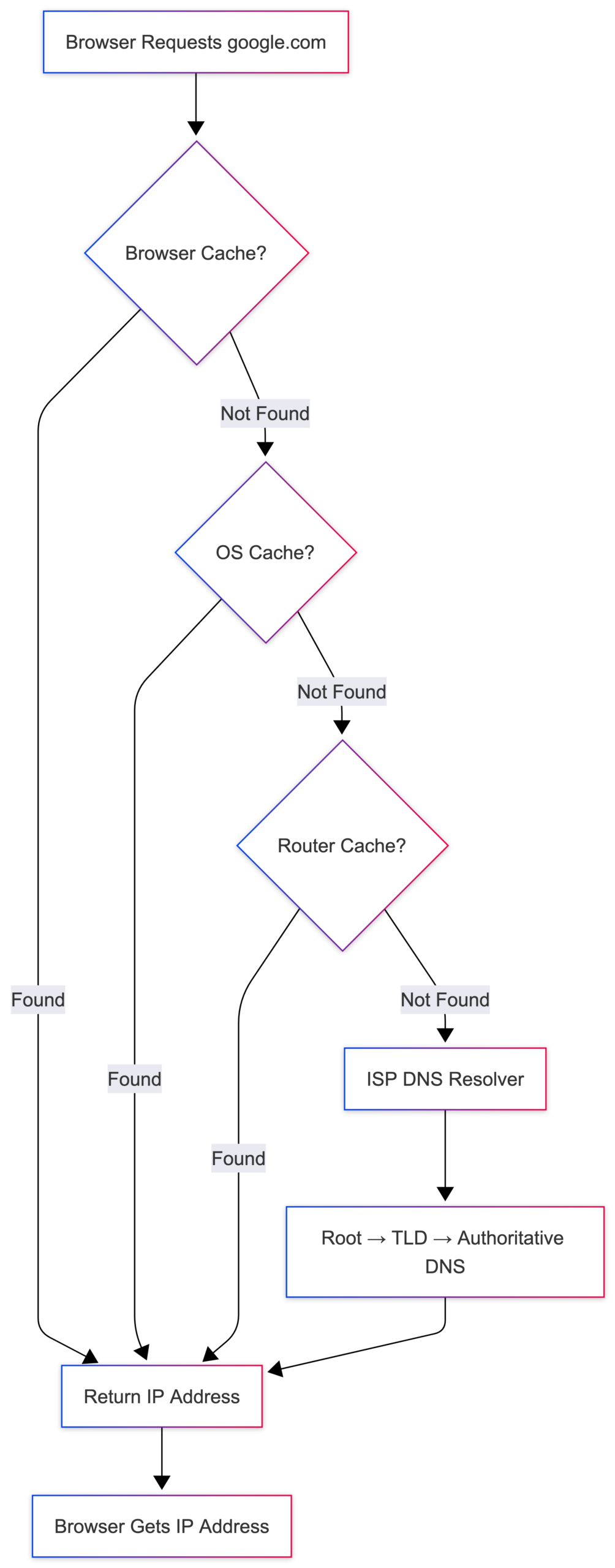
But your browser doesn’t immediately ask a DNS server. First, it checks a few places where the IP address might already be stored:
- Browser cache: Did you visit this site recently? The browser may already have the IP saved.
- OS cache: Your operating system keeps its own DNS cache.
- Router cache: Your home router may have it too.
- ISP DNS resolver: If none of the above has it, your Internet Service Provider’s DNS server tries to find it.
If the resolver doesn’t have the record cached, it follows the DNS hierarchy:
Root Servers → .com Servers → Google's Authoritative DNS Server
Eventually, the correct IP address is returned.
This whole process usually takes just milliseconds, and once it’s done, the browser has the IP address it needs.
Why does this matter?
- DNS is the reason you can type “google.com” instead of remembering an IP address.
- DNS caching is why changing a domain’s DNS settings can take hours to propagate globally.
- A slow or misconfigured DNS lookup adds measurable latency to every page load.
Now that the browser has the IP address, it needs to establish a connection to the server.
3. TCP Handshake (Establishing the Connection)
Most communication on the web relies on TCP (Transmission Control Protocol), which ensures data is delivered reliably and in the correct order.
Before any data can be exchanged, the browser and server need to agree to communicate.
This process is called the TCP three-way handshake:
- SYN: The browser sends a “synchronise” signal to the server: “I want to connect.”
- SYN-ACK: The server responds: “Got it, I’m ready.”
- ACK: The browser responds: “Perfect, let’s begin.”
Once this handshake is complete, both sides have an established connection and can start exchanging data.
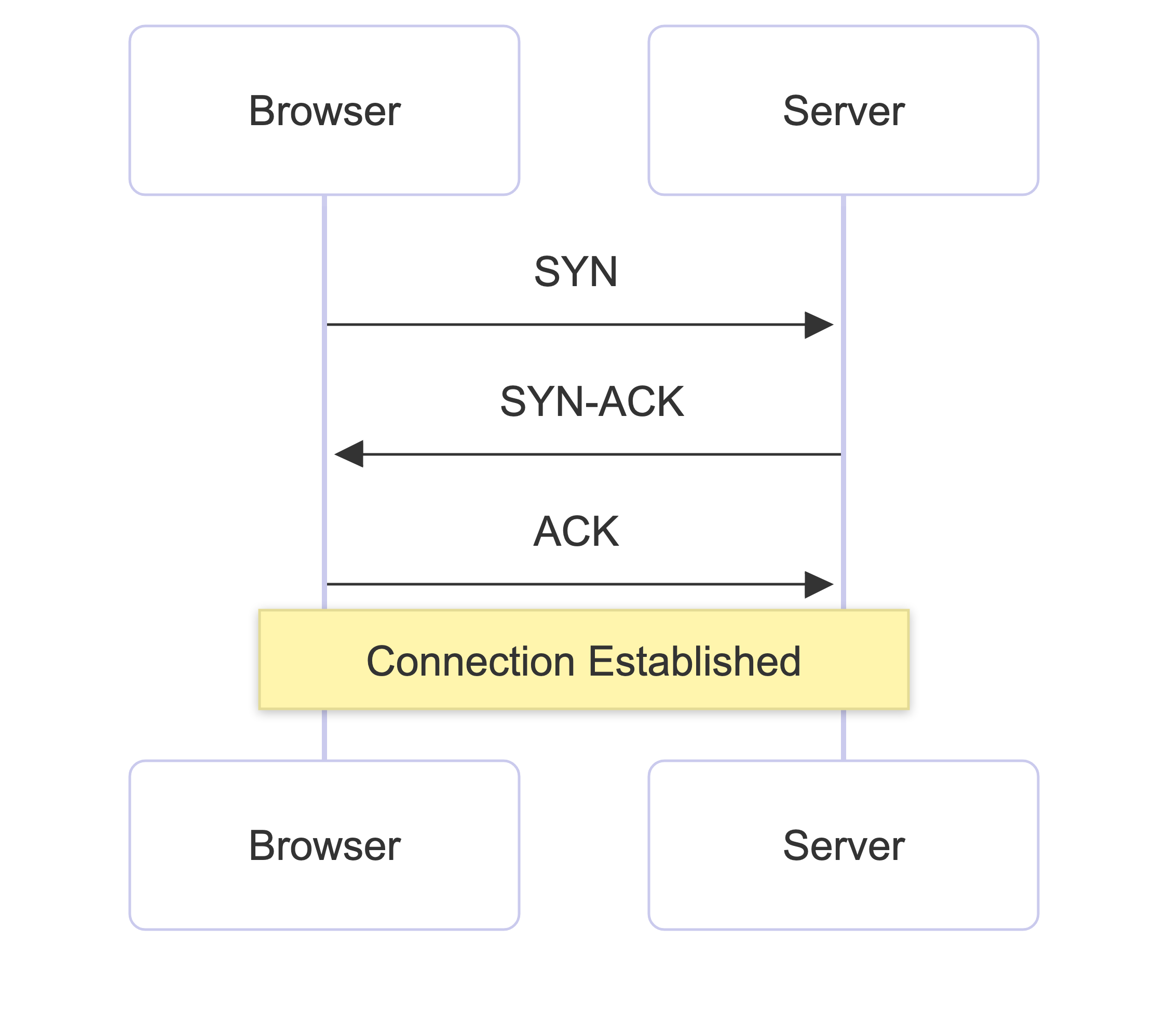
This entire process takes about one round trip (the time it takes for a request to travel to the server and for the response to come back).
That’s why physical distance matters.
A server that’s closer to you can respond faster than one located on the other side of the world.
Why does this matter?
- Every new connection costs a round trip. This is why modern websites aggressively reuse connections.
- CDNs (Content Delivery Networks) work by placing servers closer to users, reducing round-trip time.
The connection is now ready. But before sending any sensitive data, there’s one more step: making the connection secure.
4. TLS Handshake (Securing the Connection)
Since we’re using “HTTPS”, the browser and server perform a TLS (Transport Layer Security) handshake.
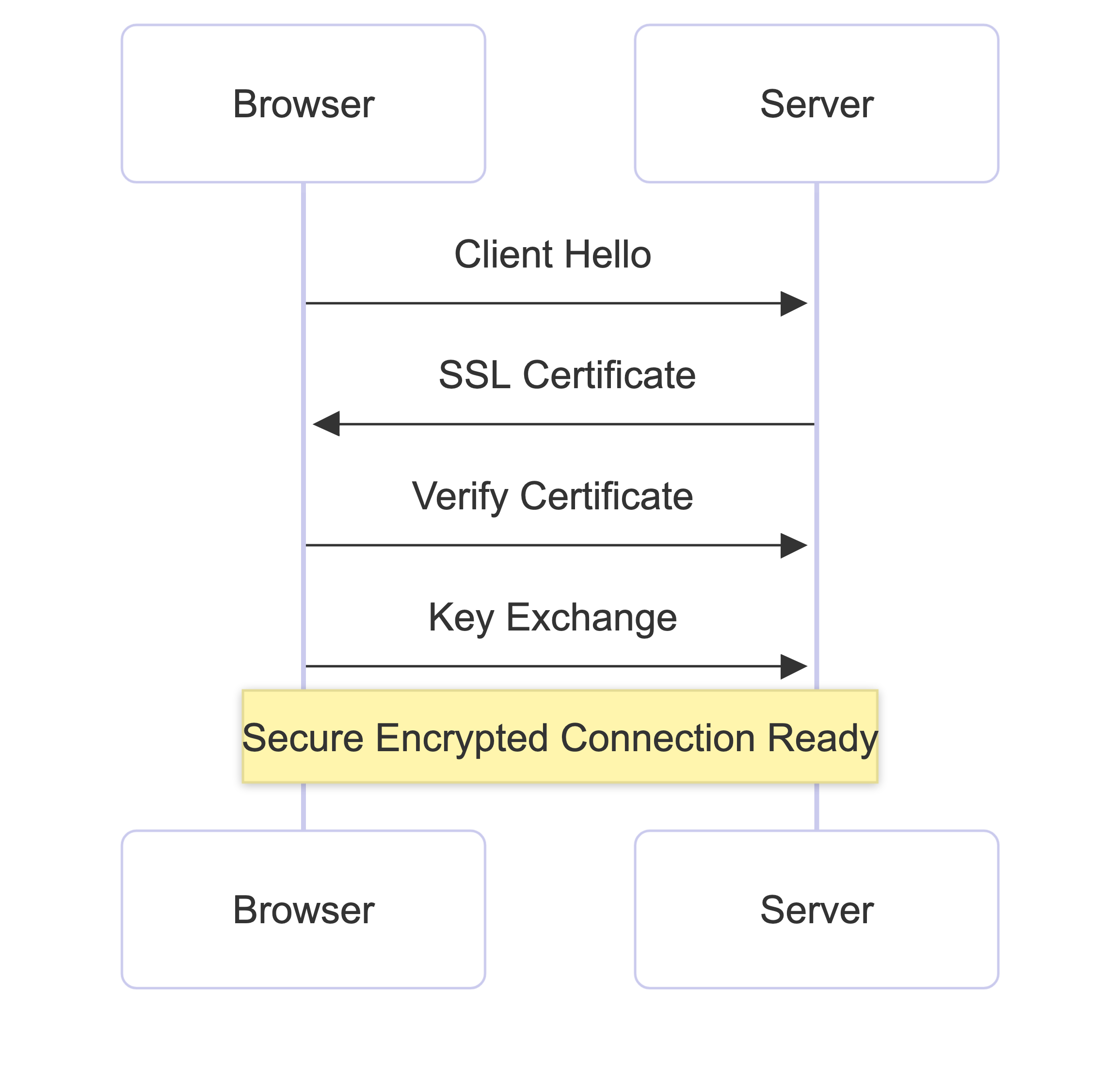
During this process:
- They agree on which encryption method to use.
- The server sends its SSL/TLS certificate, proving it’s really the website it claims to be.
- The browser verifies that certificate using trusted certificate authorities.
- Both sides generate a shared session key that will be used to encrypt all future communication.
Once this is done, the connection becomes encrypted. That means anyone sitting in the middle, whether it’s your ISP, a public Wi-Fi network, or an attacker, can’t read the data being exchanged.
Why does this matter?
- This is what makes HTTPS secure. It’s why browsers show the padlock icon for trusted websites.
- An expired or invalid SSL certificate is why browsers sometimes block you from visiting a site entirely.
The TLS handshake adds latency, which is why modern TLS versions (TLS 1.3) have been optimised to complete in fewer round trips.
Now the browser finally has a secure connection. It’s time to ask the server for the page.
5. HTTP Request (Asking for the Page)
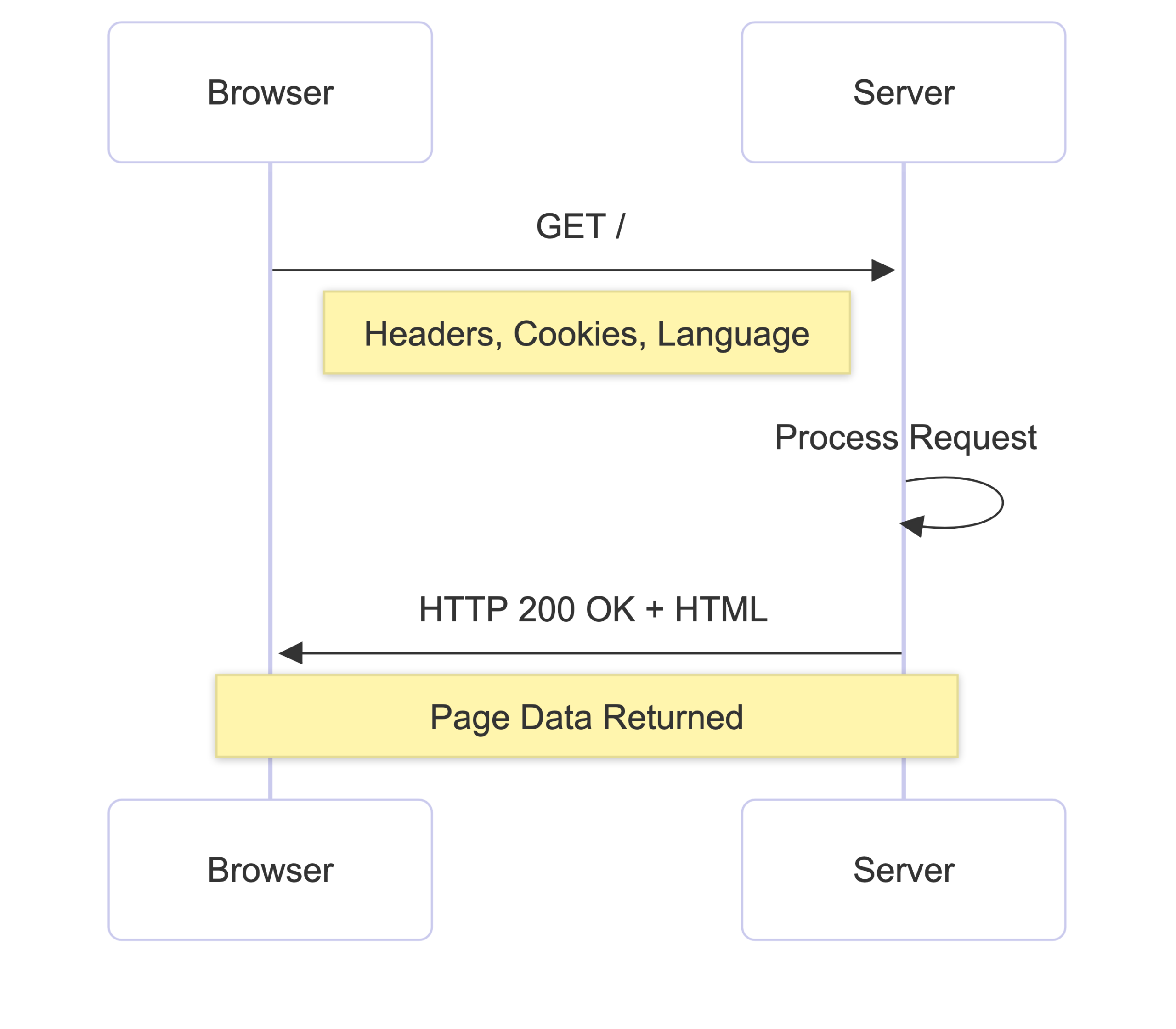
With a secure connection open, the browser sends an HTTP request to the server. It looks something like this:
GET / HTTP/1.1
Host: google.com
Accept: text/html
Accept-Language: en-US
In simple terms, the browser is saying: “Please give me the homepage (/) of google.com.”
The request also includes headers. These headers contain extra information such as:
- What browser are you using
- Which language do you prefer
- Whether you already have a cached version of the page
- Other details that help the server respond correctly
Why does this matter?
- Understanding HTTP requests is essential for debugging APIs and network issues.
- HTTP headers are used for authentication, caching, content types, and much more.
- Modern protocols like HTTP/2 and HTTP/3 have made this process significantly faster by allowing multiple requests to be sent simultaneously instead of one at a time.
The server has now received the request. Next, it needs to process it and send back a response.
6. Server Processing (Preparing the Response)
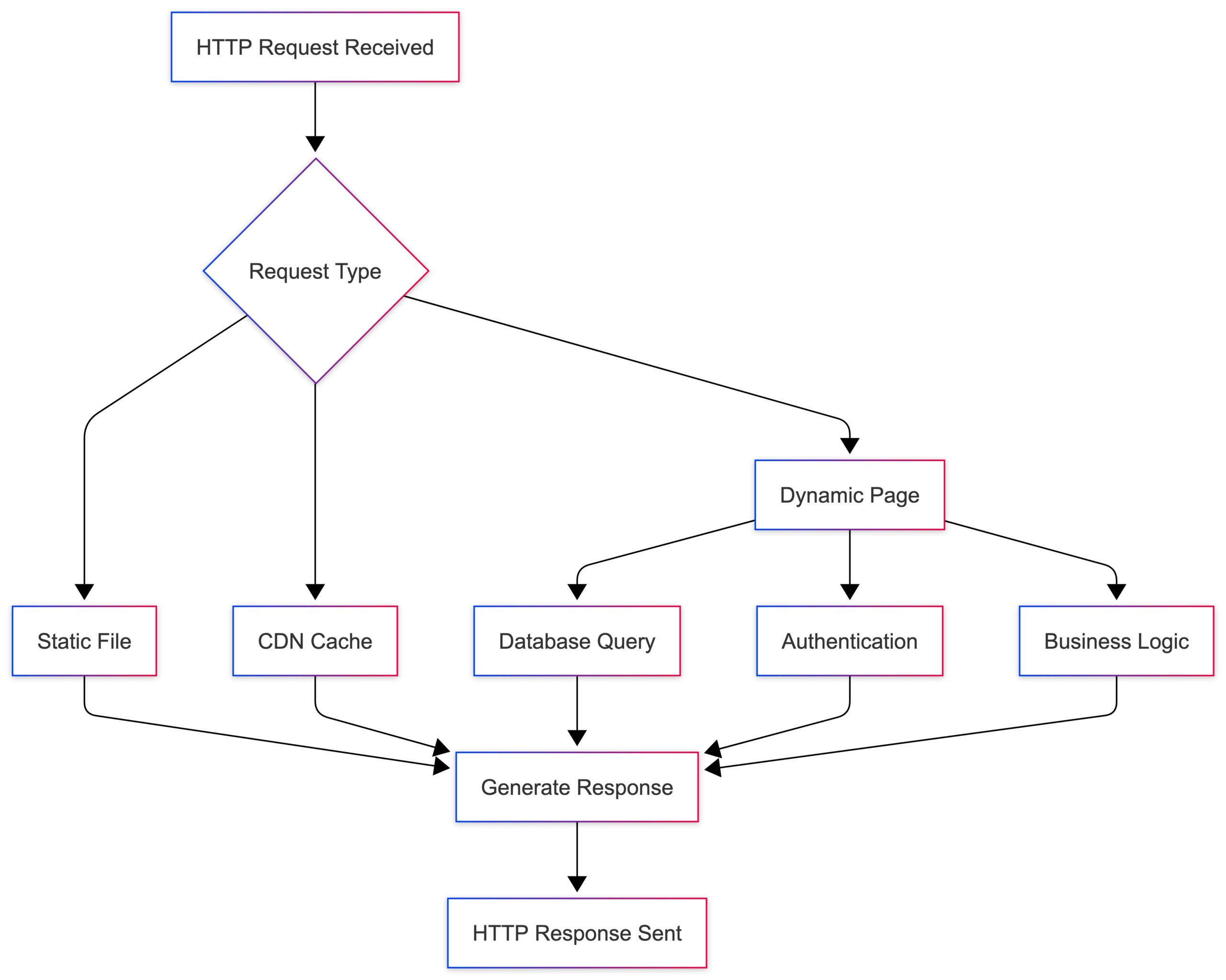
The server receives your request and figures out what to send back.
Depending on the website, this could mean:
- Static websites can simply return a pre-built HTML file.
- Dynamic websites often have more work to do. The server may query a database, check authentication, run business logic, and generate the response before sending it back.
- CDNs (Content Delivery Networks) can make things even faster. Instead of reaching the main server, the request may be served from a cached copy stored in a nearby data center.
Once everything is ready, the server sends an HTTP response back to the browser. This might look like this:
HTTP/1.1 200 OK
Content-Type: text/html
Cache-Control: max-age=3600

<!DOCTYPE html>
<html>...
The first line contains the status code, which tells the browser what happened.
Some common ones are:
- 200 OK: The request was successful.
- 404 Not Found: The requested page doesn’t exist.
- 500 Internal Server Error: Something went wrong on the server.
- 301 Moved Permanently: The page has been moved to a new location.
Why does this matter?
- The server’s response time has a huge impact on page load speed.
- Status codes help developers understand what happened during a request.
- Cache-Control headers tell the browser how long to keep a copy of the response, reducing future requests entirely.
The browser now has the server’s response. Next, it needs to turn that HTML into the page you actually see on your screen.
7. Browser Rendering (Turning HTML into a Web Page)
The browser now has the HTML. But HTML is just text.
Before you can see anything on the screen, the browser needs to convert that text into an actual webpage.
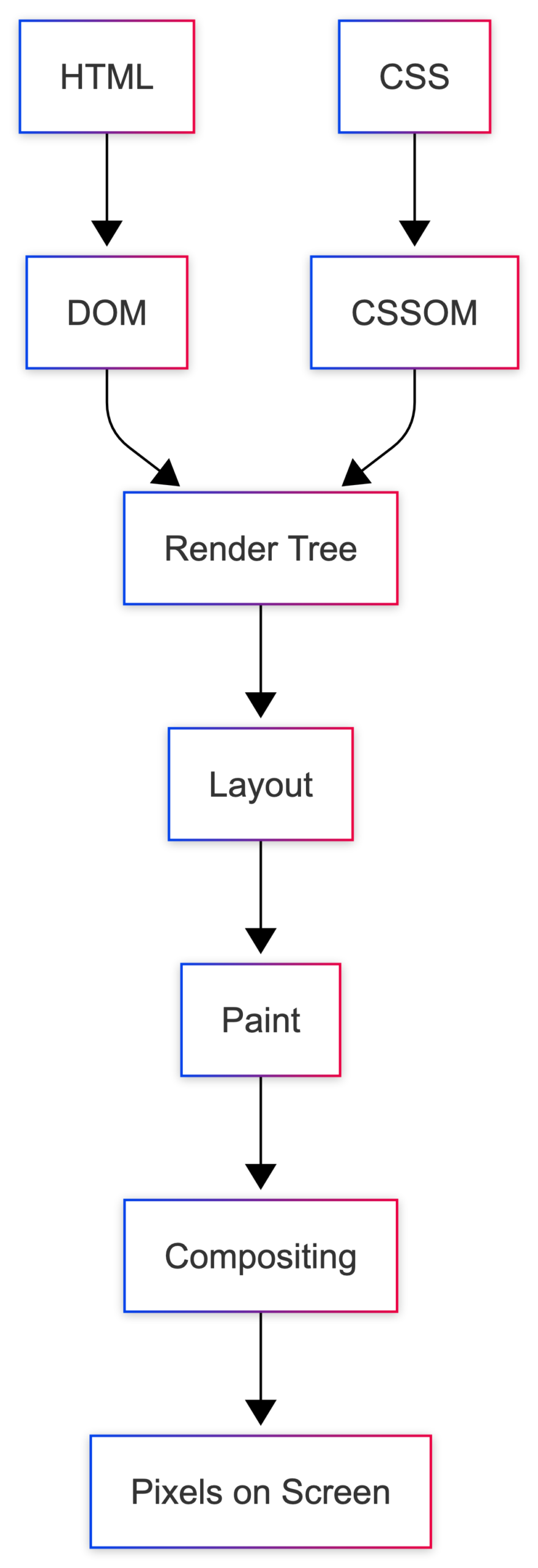
This happens in several steps:
- Parse HTML → Build the DOM
The browser reads the HTML from top to bottom and creates a DOM (Document Object Model), a tree-like structure that represents every element on the page. - Parse CSS → Build the CSSOM
Next, the browser downloads and parses the CSS. This creates a CSSOM (CSS Object Model), which contains all the styling rules for the page. - Build the Render Tree
The browser combines the DOM and CSSOM to create a Render Tree. This tree contains only the elements that need to be displayed on the screen. - Layout
Now the browser calculates where every element should appear and how much space it should take. - Paint
Once the layout is ready, the browser draws everything on the screen: text, colors, images, borders, shadows, and more. - Compositing
Finally, different layers are combined together, and the finished page appears in front of you.
Why does this matter?
- Every time JavaScript changes the DOM, the browser may have to redo layout and painting; this is called reflow and is expensive.
- Render-blocking resources (CSS and JS in the
<head>) delay the first paint. This is why placing scripts at the bottom of the page, or using defer/async, improves load time. - Understanding this rendering pipeline helps you optimise for Core Web Vitals like FCP (First Contentful Paint) and LCP (Largest Contentful Paint).
At this point, the webpage is visible. But the browser’s job still isn’t finished.
8. Additional Resources (Loading Everything Else)
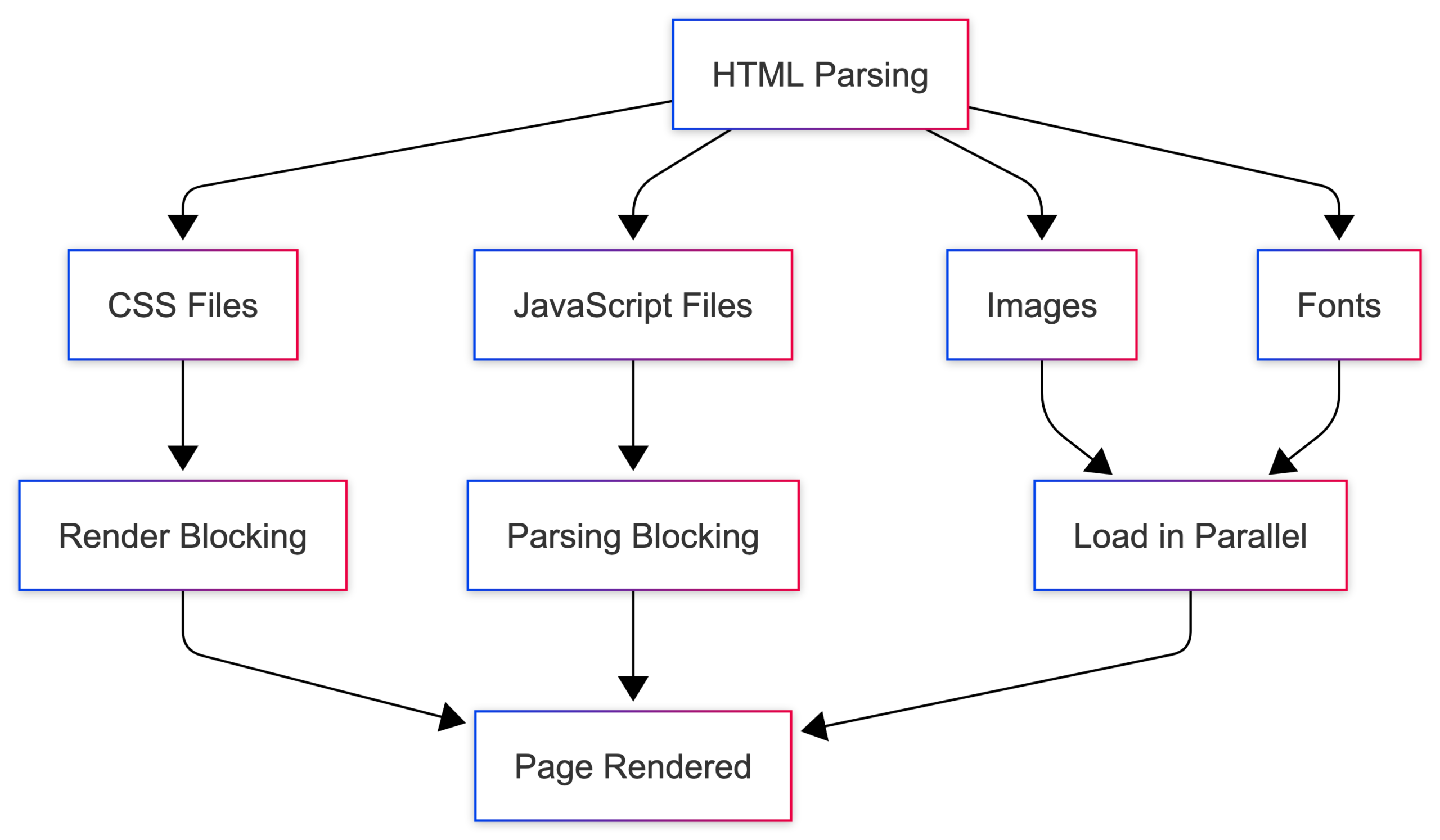
As the browser parses the HTML, it discovers additional resources it needs to fully load the page: stylesheets, JavaScript files, images, fonts, videos and other assets.
For each resource it finds, the browser sends additional requests to fetch them.
Modern browsers try to download many of these resources in parallel to speed things up. However, not all resources are treated the same.
- CSS can block rendering: The browser generally waits for stylesheets before displaying the final page because it needs to know how everything should look.
- JavaScript can block parsing: If a script doesn’t use
deferorasync, the browser pauses HTML parsing, downloads the script, runs it, and only then continues reading the page. - Images and fonts usually don’t block rendering: The page can often appear before all images and fonts have finished loading.
Modern browsers are also smart.
They use a technique called speculative parsing, where they scan ahead in the HTML and start downloading resources before they’re actually needed. This helps make pages feel much faster.
Why does this matter?
- Minimising render-blocking resources is one of the highest-impact performance optimisations.
- Tools like Lighthouse show you exactly which resources are blocking your page.
- HTTP/2 allows browsers to download multiple resources over the same connection simultaneously, which is a big reason to serve assets from the same origin.
At this point, everything has loaded, the webpage is fully rendered and interactive.
But there’s one concept that impacts almost every step we’ve discussed so far: Caching.
What About Caching?
The reason websites often load much faster the second time you visit them is that the browser doesn’t always need to repeat the entire process.
At different layers, a cached copy may already exist.
- DNS cache: If the domain was recently resolved, the browser can reuse the stored IP address and skip another DNS lookup.
- HTTP cache: Browsers can store responses locally. For example, if a resource is cached for an hour, the browser may use the local copy instead of making a new network request.
- CDN cache: A CDN stores copies of content in data centers around the world. So instead of fetching data from a server thousands of miles away, users are often served from a nearby location.
- Service Worker cache: Progressive Web Apps (PWAs) can use Service Workers to intercept requests and serve cached content locally. This is what makes some web apps work even when you’re offline.
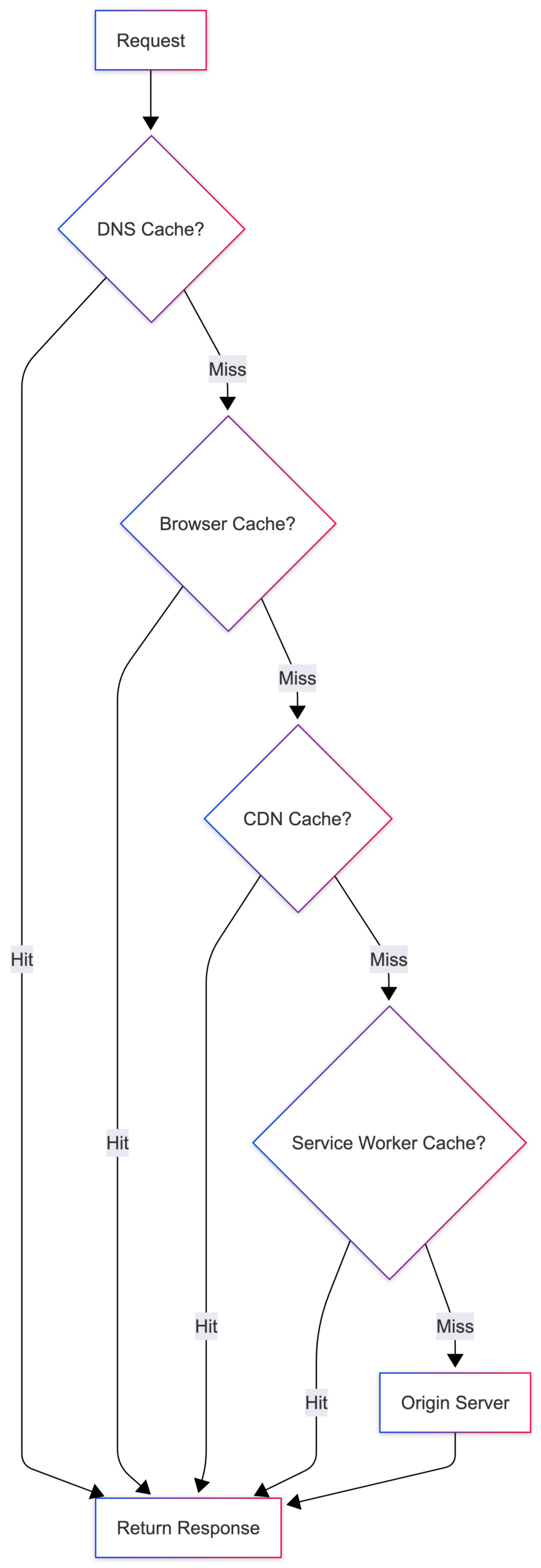
Good caching is one of the most impactful things you can do for web performance. A well-cached page can skip large parts of the process we just covered.
And that’s why one of the most important performance rules on the web is:
The fastest request is the one that never has to be made.
Putting It All Together
Here’s what happens between pressing Enter and seeing a webpage:
- URL parsing: The browser breaks down the URL.
- DNS lookup: The domain is translated into an IP address.
- TCP handshake: A reliable connection is established.
- TLS handshake: The connection is secured and encrypted.
- HTTP request: The browser asks for the page.
- Server processing: The server prepares the response.
- Browser rendering: HTML is parsed and painted to the screen.
- Additional resources: Stylesheets, scripts, fonts, and images are loaded.
And all of this happens on a good connection, in under a second.
Now that you know each step, debugging becomes much clearer.
What Can Go Wrong?
When something breaks, you can usually trace it back to a specific step in the process.
| Symptom | Likely cause |
|---|---|
| Page doesn’t load at all | The domain may not be resolving correctly. This often points to a DNS issue. |
ERR_CONNECTION_REFUSED | The browser found the server, but the connection was rejected. The server could be down, misconfigured, or blocking the request. |
| Padlock warning or browser security error | The TLS certificate may be expired, invalid, or improperly configured. |
404 Not Found | The server received the request successfully but couldn’t find the resource you asked for. |
500 Internal Server Error | Server crashed while processing your request. |
| Page loads slowly | The delay could happen at any stage. Use the DevTools Network tab to pinpoint where the time is spent. |
| Styles are missing or the layout looks broken | CSS blocked or failed to load, check for 404s on stylesheet requests. |
The Best Tool for Finding Problems
When a page feels slow or something isn’t working, open the Network tab in DevTools.
The waterfall view shows exactly where time is being spent: DNS lookup, connection setup, TLS handshake, server response time, and resource downloads.
Once you know which step is slow, finding the actual problem becomes much easier.
Wrapping Up
The next time a page loads slowly, you’ll have a much better idea of where the delay might be: a slow DNS lookup, a distant server, a render-blocking script, or a large image.
What looks like a simple page load is actually a series of systems working together in milliseconds. And that’s what makes the web so fascinating.
The next time someone asks you “what happens when you type a URL?”, you won’t just say “the page loads.”
You’ll know exactly what happens.
That’s all for today!
I hope this makes the web feel a little less like magic and a little more like something you can understand, debug, and optimise.
If you enjoy my work and want to support what I do, buy me a coffee!
Every small gesture keeps me going! 💛
Follow me on X (Twitter) to get daily web development tips & insights.
Enjoyed reading? You may also find these articles helpful.
13 Most Common HTTP Status Codes You Should Know As A Developer