Most developers use VS Code every day, but not everyone takes the time to explore its settings and shortcuts.
These might look like small things, but when you use them regularly, they can save you a lot of time.
In this article, I’ll share 18 useful VS Code shortcuts and settings that can make your everyday coding experience a little easier.
I’ve mentioned Windows and Linux shortcuts first, followed by Mac shortcuts in brackets.
For settings, open the Command Palette and search for Open User Settings (JSON) to add them to your configuration.
Let’s jump right into it!
1. Command Palette
The Command Palette lets you access almost any command in VS Code from one place.
Just open it, type the command you want to run, and press Enter. You can also use it to find shortcuts when you don’t remember them.
Shortcut: Ctrl+Shift+P (Mac: Cmd+Shift+P)
2. Quick Open
If you want to open a file without searching through folders, you can use Quick Open. Just type the file name or part of it, and VS Code will show you the matching files.
You can also press the shortcut again to cycle through recently opened files.
Shortcut: Ctrl+P (Mac: Cmd+P)
3. Multi-Cursor Editing
You can edit multiple occurrences of a word or variable at the same time using multi-cursor editing.
Select a word and press Ctrl+D (Mac: Cmd+D) to select its next occurrence. Keep pressing it to add more selections and make changes in all of them at once.
To select all occurrences, use Ctrl+Shift+L (Mac: Cmd+Shift+L).
You can also hold Alt and click anywhere to add another cursor (Mac: Option and click).
4. Move a Line Up or Down
You don’t need to cut and paste a line just to change its position.
Select a line and use Alt+Up or Alt+Down (Mac: Option+Up or Option+Down) to move it up or down. It also works with multiple selected lines.
5. Copy a Line Up or Down
If you want to duplicate a line of code, you can do that without copying and pasting it manually.
You can use Shift+Alt+Up or Shift+Alt+Down (Mac: Shift+Option+Up or Shift+Option+Down) to create a copy of the current line above or below it. You can also use it with multiple selected lines.
Note: On Linux, these shortcuts aren’t assigned by default because they conflict with some Ubuntu shortcuts. To assign your own keys, open the Keyboard Shortcuts editor using Ctrl+K Ctrl+S (Mac: Cmd+K Cmd+S), search for Copy Line Up and Copy Line Down, and click the pencil icon next to each command to set your preferred shortcuts.
6. Rename Symbol
You can rename a variable, function, or class across your code without updating every occurrence manually.
Select the name, press F2, and enter the new name. VS Code will update its references wherever supported by the language extension.
7. Split the Editor
You can split the VS Code editor to work with multiple files side by side.
This is useful when you want to refer to one file while making changes in another.
To switch between editor groups, use Ctrl+1, Ctrl+2, and Ctrl+3 (Mac: Cmd+1, Cmd+2, and Cmd+3).
You can also drag a file tab to create another editor group.
8. Zen Mode
Zen Mode hides the sidebar, status bar, and other editor panels to give you a cleaner workspace.
You can enable it using Ctrl+K Z (Mac: Cmd+K Z) when you want to focus on writing code without distractions. Press Esc twice to exit.
9. Toggle the Sidebar and Panel
You can use Ctrl+B (Mac: Cmd+B) to show or hide the sidebar and Ctrl+J (Mac: Cmd+J) to show or hide the panel.
10. Compare a File with the Clipboard
You can compare the code in your clipboard with the currently opened file using VS Code’s diff editor.
First, copy the code you want to compare. Then use Ctrl+K C (Mac: Cmd+K C) to open the comparison and see the differences.
11. Auto Save
You can enable Auto Save in VS Code to save your files automatically instead of pressing Ctrl+S every time.
Add "files.autoSave": "afterDelay" to your settings.json.
You can also enable it from File > Auto Save.
12. Format on Save
You can make VS Code format your code automatically whenever you save a file.
This helps keep your code indentation and formatting consistent without having to format it manually.
Add "editor.formatOnSave": true to your settings.json.
Make sure you have a formatter configured for your programming language.
13. Format on Paste
When you copy code from somewhere else, its formatting might not match your existing code.
You can enable this setting to format pasted code automatically.
Add "editor.formatOnPaste": true to your settings.json.
14. Font Ligatures
Font ligatures change certain character combinations into single visual symbols in your code editor.
For example, combinations like => and !== can appear as connected symbols.
You need a font that supports ligatures. Fira Code is one popular option.
Add these settings to your settings.json:
"editor.fontFamily": "Fira Code",
"editor.fontLigatures": true
15. Vertical Rulers
You can add vertical lines to your editor to keep track of your code’s line length.
For example, if you want to keep your lines within 15 or 30 characters, you can set rulers at those positions.
Add this setting:
"editor.rulers": [15, 30]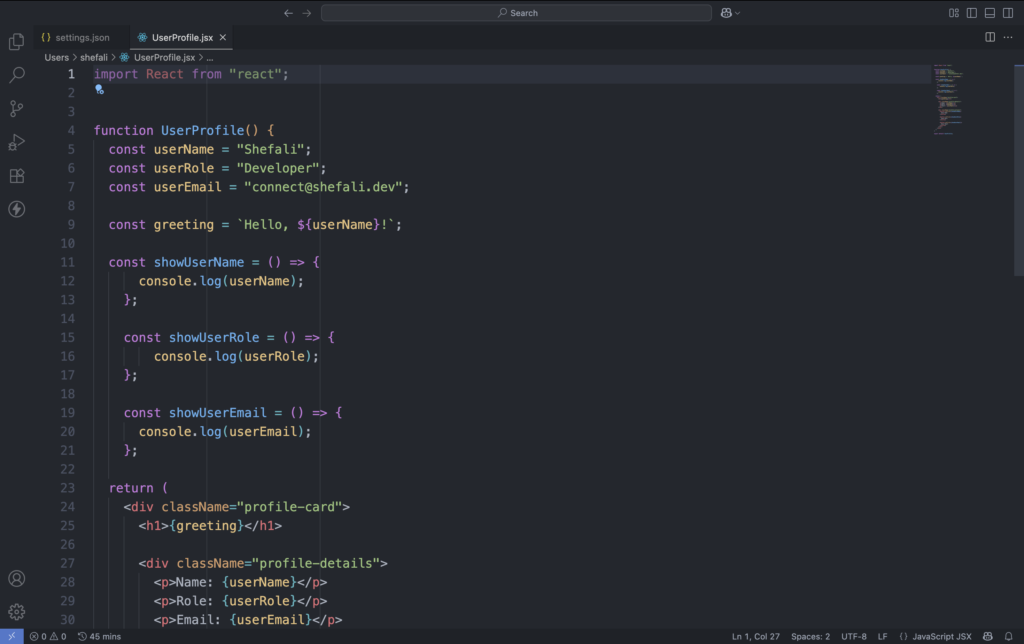
16. Hide Files from the Explorer and Search
Some folders, like dist, contain generated files that you might not need to access regularly.
You can hide these folders from the Explorer and exclude them from search results using these settings:
"files.exclude": {
  "dist/": true
},
"search.exclude": {
  "dist/": true
}
This helps keep your Explorer and search results focused on the files you’re working with.
17. File Associations
You might have files with custom extensions that contain JSON, JavaScript, or another familiar format.
You can use file associations to tell VS Code which language mode to use for those files.
For example, to treat .database files as JSON, add this setting:
"files.associations": {
  ".database": "json"
}
18. Language-Specific Settings
You can configure different editor settings for different programming languages.
For example, you might want to use 2 spaces for JavaScript and 4 spaces for Python.
Instead of changing the tab size every time, add language-specific settings:
"[javascript]": {
  "editor.tabSize": 2
},
"[python]": {
  "editor.tabSize": 4
}
You can also search for Configure Language Specific Settings in the Command Palette.
That’s all for today!
I hope these VS Code shortcuts are helpful for you and you found something new to try in VS Code.
If you enjoy my work and want to support what I do, you can buy me a coffee!
Every small gesture keeps me going! 💛
Follow me on X (Twitter) for daily web development tips and insights.
Enjoyed reading? You may also find these articles helpful.
22 CSS Tips You Should Know to Enhance Your UI Design