Most developers install a library as soon as they need something more than a basic button or input.
But browsers can do much more than most people realise. Many features that once required JavaScript libraries, like dialogs, popovers, color pickers, smooth scrolling, clipboard access, sharing, and speech recognition, are now built into the browser.
In this article, I’ll share 22 browser native features that can help you write less code and rely on fewer libraries.
Let’s jump right into it!
1. Native Dialog
The <dialog> element lets you create a modal without using any library.
It automatically handles focus, closes when the user presses the Escape key, and shows a backdrop behind the modal.
<dialog id="modal">
  <p>Hello! I'm a native dialog.</p>
  <button onclick="modal.close()">Close</button>
</dialog>

<button onclick="modal.showModal()">Open Modal</button>
With just a few lines of code, you get a modal that’s accessible, keyboard-friendly, and works right out of the box, without the need for any JavaScript library.
2. Native Popover API
The Popover API lets you create popovers, dropdowns, and small floating panels without a JavaScript library.
<button popovertarget="tip">Hover info</button>

<div id="tip" popover>
  This is a native popover!
</div>
The browser automatically opens and closes the popover, and closes it when you click outside. All you need is a few HTML attributes.
3. Native Color Picker
The <input type="color"> element gives users a built-in color picker without any library.
<input type="color" value="#7c3aed" />
When clicked, it opens the system’s native color picker. The selected color is returned as a hex value, which you can easily use in JavaScript.
4. Clipboard API (Copy Without a Library)
The Clipboard API lets you copy text without using any library.
await navigator.clipboard.writeText("Hello, clipboard!");
You can also read copied text using:
const text = await navigator.clipboard.readText();
Most browsers require the user to interact with the page (like clicking a button), and some may ask for permission before allowing clipboard access.
5. Web Share API
The Web Share API lets you open your device’s native share menu directly from JavaScript.
await navigator.share({
  title: "Check this out!",
  text: "A great article I found.",
  url: "https://shefali.dev"
});
Users can instantly share your content through apps like WhatsApp, X, email, and more, without creating separate share buttons for each platform.
6. Native <details> and <summary> (Accordion Without JS)
The <details> and <summary> elements let you create an expandable section without any JavaScript.
<details>
  <summary>What is CSS Grid?</summary>
  <p>CSS Grid is a two-dimensional layout system...</p>
</details>
Users can click to expand or collapse the content. It’s built into HTML, accessible by default, and you can style it with CSS to match your design.
7. Native Lazy Loading
The loading="lazy" attribute tells the browser to load an image only when it’s about to appear on the screen.
<img src="photo.jpg" loading="lazy" alt="My photo" />
This helps pages load faster and saves bandwidth by delaying offscreen images.
Before this, lazy loading required an IntersectionObserver setup or a library like lazysizes. Now it’s just one HTML attribute.
8. Smooth Scrolling
You can enable smooth scrolling across your website with just one line of CSS.
html {
  scroll-behavior: smooth;
}
Now, whenever a user clicks an anchor link (like <a href="#section">), the page will smoothly scroll to that section, without the need of any JavaScript.
9. Geolocation API
The Geolocation API lets you get the user’s current location directly from the browser.
navigator.geolocation.getCurrentPosition((position) => {
  console.log(position.coords.latitude, position.coords.longitude);
});
The browser will ask the user for permission first. If they allow it, you can access their latitude, longitude, accuracy, and other location details, without the need for any library.
10. Notification API
The Notification API lets your web app send desktop notifications after the user grants permission.
Notification.requestPermission().then(() => {
  new Notification("Hello!", {
    body: "You have a new message.",
    icon: "/icon.png"
  });
});
The browser will ask the user for permission before showing notifications. Once allowed, your app can display native desktop notifications without any third-party library.
11. Speech Recognition API
The Speech Recognition API lets users speak to your web app and converts their voice into text.
const recognition = new webkitSpeechRecognition();
recognition.onresult = (e) => {
  console.log(e.results[0][0].transcript);
};
recognition.start();
This makes it easy to add voice input to your app without using a third-party library.
12. Page Visibility API
The Page Visibility API lets you know when a user switches to another tab or minimizes the browser window.
document.addEventListener("visibilitychange", () => {
  if (document.hidden) {
    console.log("User left the tab");
  }
});
This is useful for pausing videos, animations, timers, or other background tasks when the page isn’t visible, helping save battery and improve performance.
13. Fullscreen API
The Fullscreen API lets you display any element in fullscreen mode.
document.getElementById("player").requestFullscreen();
This is useful for video players, games, image galleries, and presentations. The browser automatically handles entering and exiting fullscreen, and you can listen for the fullscreenchange event to know when the mode changes.
14. Vibration API
The Vibration API lets you trigger haptic feedback on supported mobile devices.
navigator.vibrate(200);        // vibrate for 200ms
navigator.vibrate([100, 50, 100]); // pattern: on, off, on
You can use it for notifications, form validation, or game interactions. It works only on supported devices and browsers.
15. Intersection Observer API
The Intersection Observer API lets you detect when an element enters or leaves the viewport.
const observer = new IntersectionObserver((entries) => {
  entries.forEach(entry => {
    if (entry.isIntersecting) {
      entry.target.classList.add("visible");
    }
  });
});

observer.observe(document.querySelector(".card"));
It’s perfect for scroll animations, infinite scrolling, lazy loading, and tracking when elements become visible. Unlike scroll event listeners, it’s efficient and doesn’t hurt performance.
16. Network Information API
The Network Information API lets you check the user’s network connection.
const connection = navigator.connection;
console.log(connection.effectiveType); // "4g", "3g", "2g", "slow-2g"
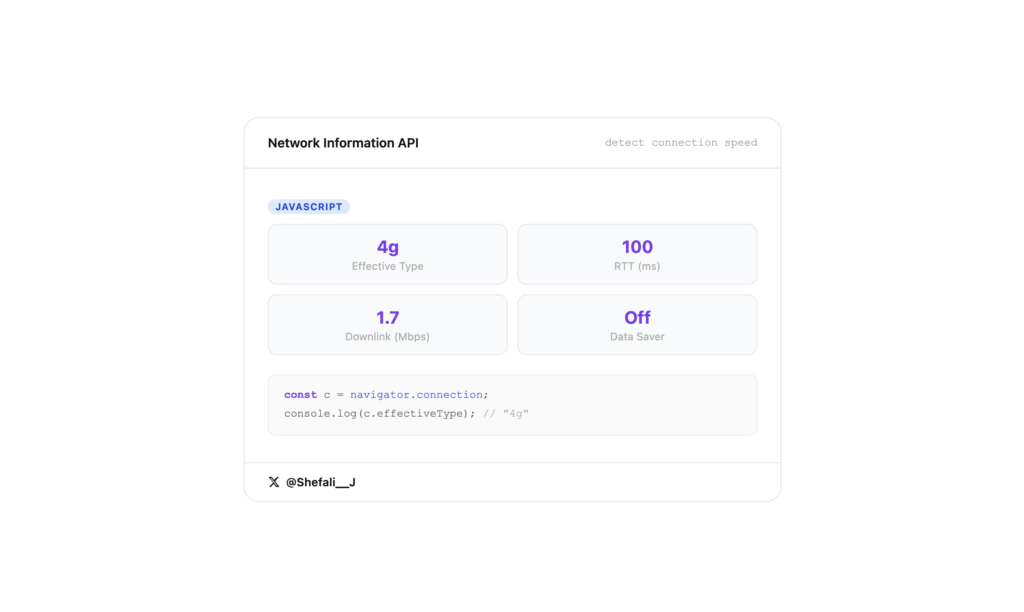
You can use this to load smaller images, reduce data usage, or disable autoplay videos on slower connections.
17. <datalist> for Autocomplete
The <datalist> element adds autocomplete suggestions to a text input without any JavaScript.
<input list="frameworks" placeholder="Pick a framework" />

<datalist id="frameworks">
  <option value="React" />
  <option value="Vue" />
  <option value="Svelte" />
  <option value="Angular" />
</datalist>
Users can type to filter the options or select one from the list. It’s a simple, built-in way to add autocomplete without creating a custom dropdown.
18. Picture-in-Picture
The Picture-in-Picture API lets a video play in a small floating window that stays on top of other apps and tabs.
const video = document.querySelector("video");
await video.requestPictureInPicture();
This allows users to keep watching a video while browsing other websites or using different apps, all with a single method call.
19. Wake Lock API
The Wake Lock API prevents the device screen from turning off while your app is in use.
const lock = await navigator.wakeLock.request("screen");

// Release it when done
lock.release();
It’s useful for apps like recipes, navigation, presentations, or reading, where you don’t want the screen to go to sleep.
20. ResizeObserver API
The ResizeObserver API lets you detect when an element changes size.
const observer = new ResizeObserver(entries => {
  entries.forEach(entry => {
    console.log(entry.contentRect.width);
  });
});

observer.observe(document.querySelector(".sidebar"));
Unlike the resize event, it watches individual elements instead of the whole window. It’s great for responsive components like charts, sidebars, editors, and dynamic layouts.
21. navigator.onLine
The navigator.onLine property lets you check whether the user is currently online.
console.log(navigator.onLine); // true or false

window.addEventListener("offline", () => {
  showOfflineBanner();
});

window.addEventListener("online", () => {
  hideOfflineBanner();
});
You can use it to show offline messages, save user actions locally, and sync them once the internet connection is restored.
22. window.matchMedia()
The window.matchMedia() method lets you use CSS media queries in JavaScript.
const isMobile = window.matchMedia("(max-width: 768px)").matches;

window.matchMedia("(prefers-color-scheme: dark)").addEventListener("change", e => {
  if (e.matches) applyDarkMode();
});
It’s useful for checking screen size, detecting dark mode, and responding to user preferences without adding resize event listeners.
That’s all for today!
I hope this helps you build more with less code.
If you enjoy my work and want to support what I do, buy me a coffee!
Every small gesture keeps me going! 💛
Follow me on X (Twitter) to get daily web development tips & insights.
Enjoyed reading? You may also find these articles helpful.
19 JavaScript One-Liners That’ll Blow Your Mind